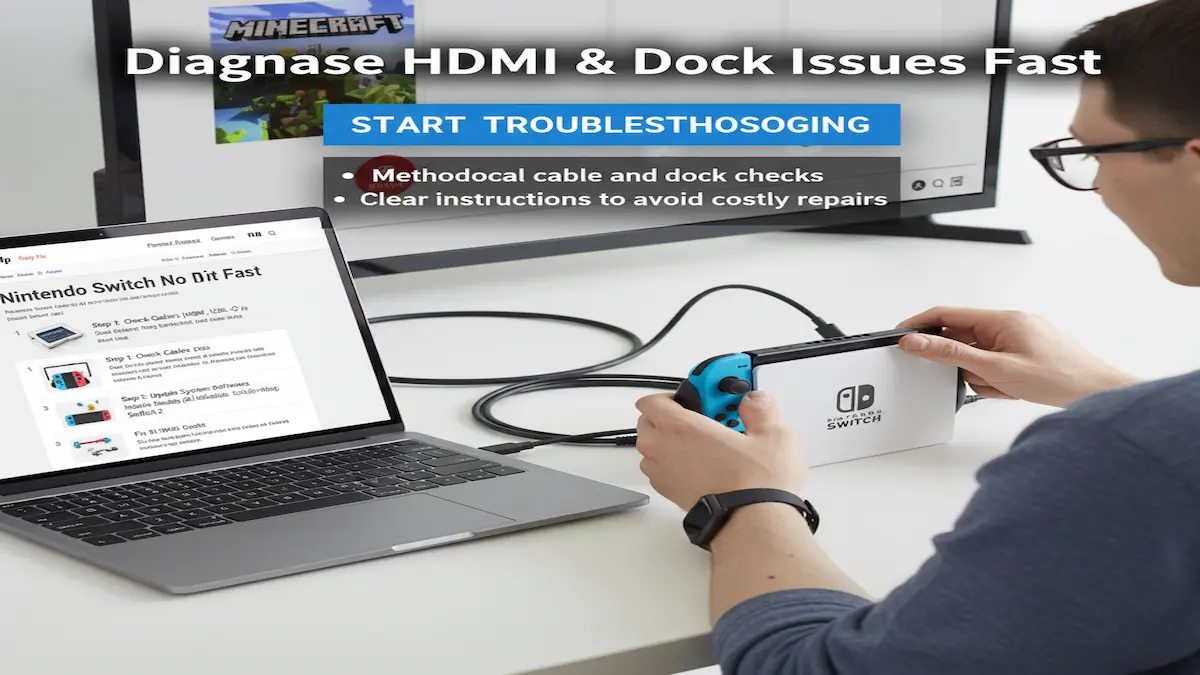
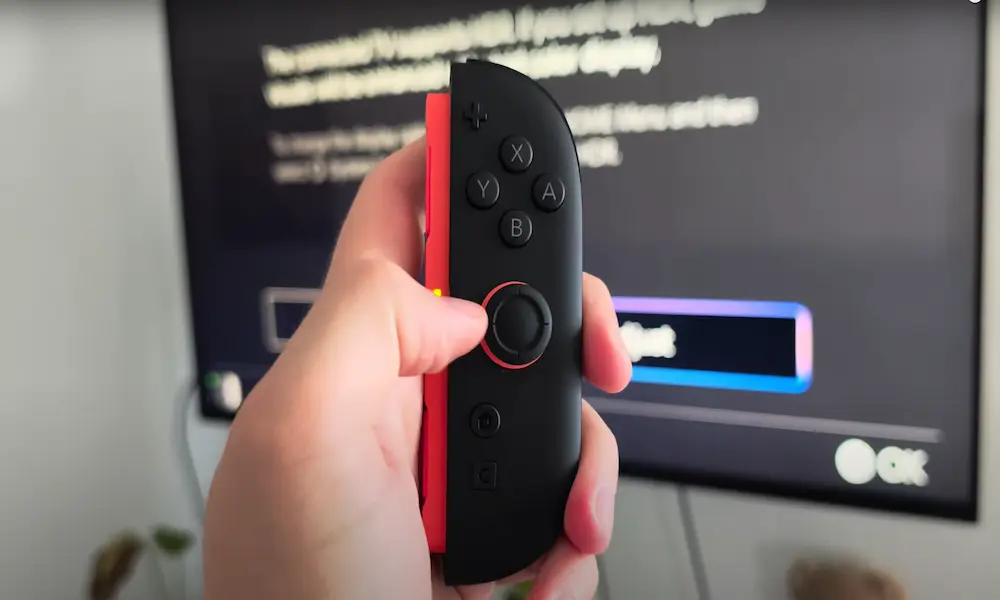
Not all HDMI cables are the same. Some cheaper third-party cables might not have the proper video output resolution, thus leaving your Nintendo Switch OLED model or regular Switch with a blank screen.
- Using the Nintendo HDMI cable or using a high-quality certified HDMI cable.
- “Try out several HDMI ports from your TV,” just to make sure that there are no issues associated with that particular port.
3. Restart the Nintendo Switch and TV
Temporary glitches can often be fixed with a power cycle.
- Step 1: Turn the Switch off and hold the power button for 3 seconds, then select Power Options > Turn Off.
- Step 2: Unplug your TV for 30 seconds after turning off the TV.
- Step 3: Switch on the TV first, then dock and switch on your Switch.
This method resets the link, thus amending any signal errors Switch no signal on TV configuration.
4. Check Your TV Input Settings
Everything might be properly connected, but to your TV, it might not see the appropriate input:
- Use your TV remote to select the HDMI port where the Switch is connected.
- Most TVs require a manual switch between inputs, while some automatically sense the active device.
Pro tip: Label your HDMI ports to prevent future troubleshooting difficulties.
5. Dock the Switch Properly
Docking problems tend to happen pretty much at all times, especially with the Switch OLED and Switch 2 models.
- Ensure the console clicks into the dock fully.
- The green light should glow when there is a successful connection to the dock.
- Place the dock away from other electronic devices in order to avoid interference.
6. Update Nintendo Switch System Software
Outdated firmware usually creates problems in display and connectivity:
- System settings > System > System update.
- Should an update be available, perform the installation and restart your Switch.
- Additionally, check if the TV has a firmware update as well during the cases of using smart TV HDMI-CEC or gaming compatible feature.
7. Try a Different HDMI Cable or Port
Sometimes that port or cable is faulty.
- Try a different HDMI cable.
- Then try a different HDMI port from your television.
- If one is available, connect it to another TV to rule out any console issues.
This step usually resolves the problem of Switch not displaying on TV, OLED.
8. Avoid Third Party Docks
It seems quite an easy approach but most of the time result in really erratic behavior with displays.
- Always use the official Nintendo dock when you have a choice.
- Most of the time, it simply misses some voltage regulation or USB-C pin support, rendering the Nintendo Switch dock completely blank.
9. Check for Hardware Issues
Last, hardware issues are the only explanation left.
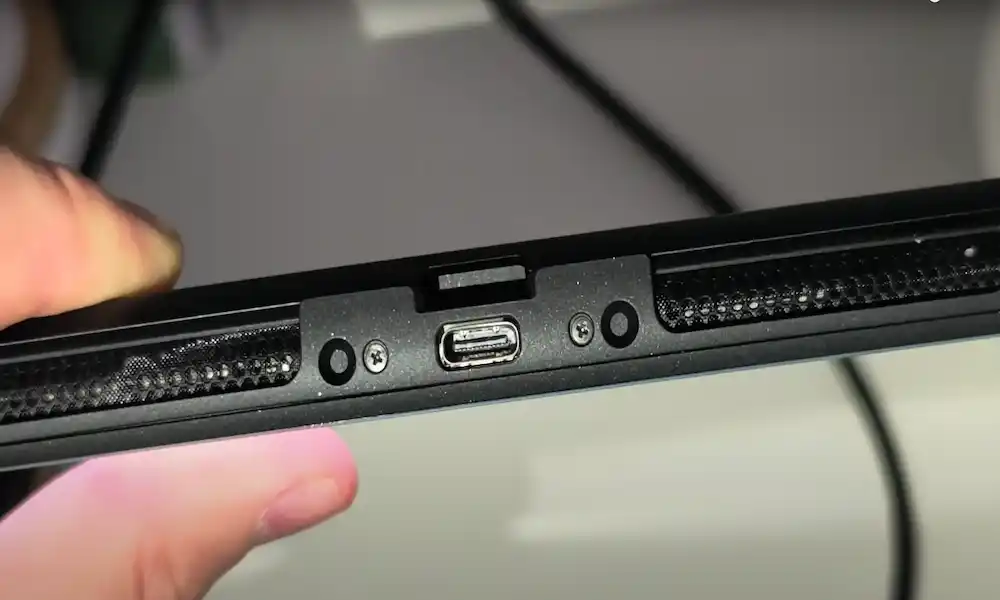
- The USB-C port on the Switch can eventually wear out over time.
- Internal dock chips, such as the P13USB chip on Switch 2, can go bad.
- Cases like this usually require professional repair or replacement.
10. Talk to Nintendo Support
If all else fails:
- Get to know about Nintendo Support for official assistance.
- Provide them with the model, which cables you used, and the troubleshooting steps you have already performed.
- They would be the best guide in process warranty repairs or replacements.
Related Posts
FAQs
Why is it that all of a sudden my Switch is not connecting to the TV?
Mostly it boils down to loose cables, dock issues, or wrong TV input.
Why is the Nintendo Switch flashing and nothing displaying on it?
This can be either HDMI connection failure or dock power problem.
How can I fix the dock that doesn’t work?
Use another AC adapter, reset your Switch, or try using a different dock.
Does Nintendo Switch Lite connect to the TV?
No, it doesn’t. Switch Lite does not support TV output.
My Switch OLED has no signal on the TV. What do I do?
Go back to the above steps-check the cables, dock position, HDMI ports, and software updates.
Conclusion
For most display issues with a Nintendo Switch, very easy fixes exist. Whenever you have checked the cables, dock positioning, TV input, and software updates, your console should be back on the big screen within minutes. Avoid third-party docks and bad cables, and remember that if it is a hardware problem persisting, Nintendo Support is your best bet.
With these simple fixes, your Nintendo Switch should be displaying beautifully on your TV, letting you enjoy huge gaming once again.